Identify the problem before editing
An edge problem can be leftover background, missing subject pixels, or color already mixed into the original outline. These need different fixes. Compare the cutout with the original at a close zoom, then test it on both white and dark backgrounds to see where the problem occurs.
Check the exported PNG as well as the browser preview. Viewing an image at a fractional scale can make an otherwise reasonable edge look uneven. Inspect at its native size in the destination editor before deciding that the file itself needs correction.
| Symptom | Test | Likely next step |
|---|---|---|
| A detached patch outside the subject | Switch background colors. Does the same patch remain? | Erase the patch if it is not part of the photographed subject. |
| A notch in a strap, label, or shoulder | Compare that position with the original. | Restore only the missing source detail. |
| A thin bright or colored outline | Check whether the color already appears in the original edge. | If it is color spill, use color correction elsewhere; do not shrink the subject to hide it. |
| Stair steps visible mainly at high zoom | View the actual export at native size and intended display size. | Avoid enlarging a low-resolution source. Do not erase normal edge smoothing. |
| An entire white rectangle | Place the downloaded file over a colored layer. | Check flattening and file conversion before editing the outline. |
Remove leftover patches and filled gaps
Background can remain inside a handle, between limbs, or around narrow product details. After processing, switch to Cutout and use Erase to remove those unwanted pixels. Choose a brush smaller than the gap and work in short strokes to avoid cutting into the subject.
Check the whole outline after each group of edits. A large brush is convenient for a distant patch but risky near laces, leaves, and fabric. Undo an inaccurate stroke instead of repeatedly painting over the same area and gradually changing the silhouette.
Bring back missing parts of the subject
Use Restore area when the automatic cutout removes a real detail. The brush restores pixels from your original upload, not an invented reconstruction. Paint only over the missing region and compare it with the original to ensure the shape remains accurate.
Restoring an area can also bring back its background, particularly around hair and transparent materials. Reduce the brush size or undo the stroke if that happens. If the original detail is hidden, blurred, or outside the frame, this control cannot reconstruct it.
Understand white halos and colored fringes
A thin bright rim can be leftover background, but it can also come from soft edge pixels that already contain the original background color. Erasing a rim indiscriminately can shrink the subject. First check whether the rim appears in the original photograph and whether the intended new background makes it distracting.
Cutout Lab's erase and restore tools do not provide dedicated color decontamination. Persistent color spill may need a specialist masking editor or a new photo with more neutral surroundings. Choosing a similar background can make a fringe less visible, but does not actually remove the contamination.
Worked diagnosis: a pink rim on a white sole
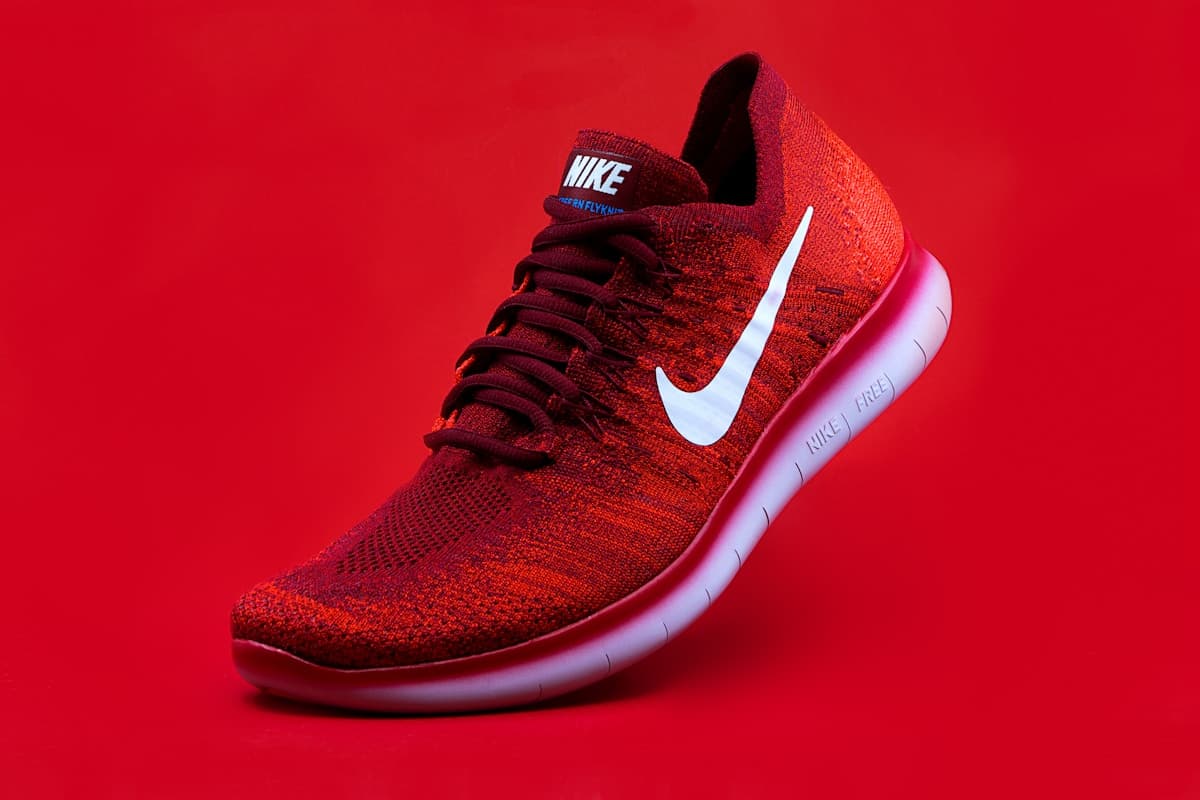
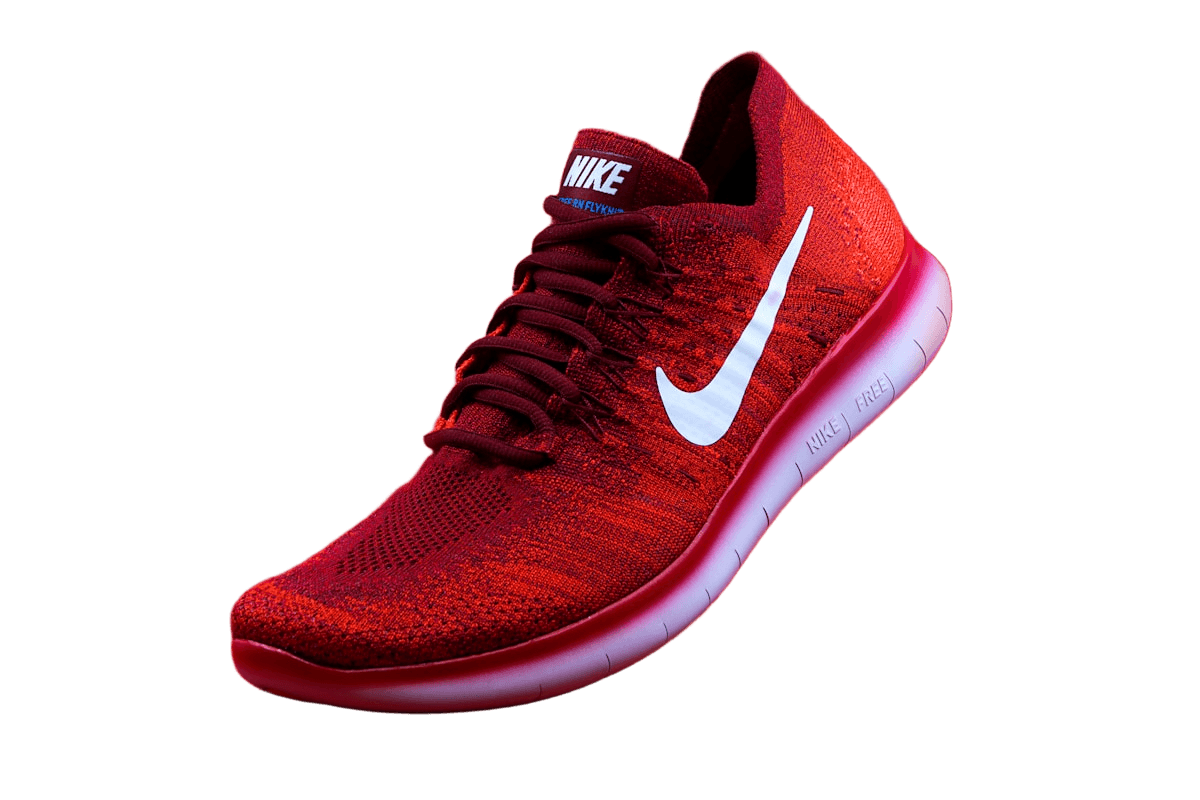
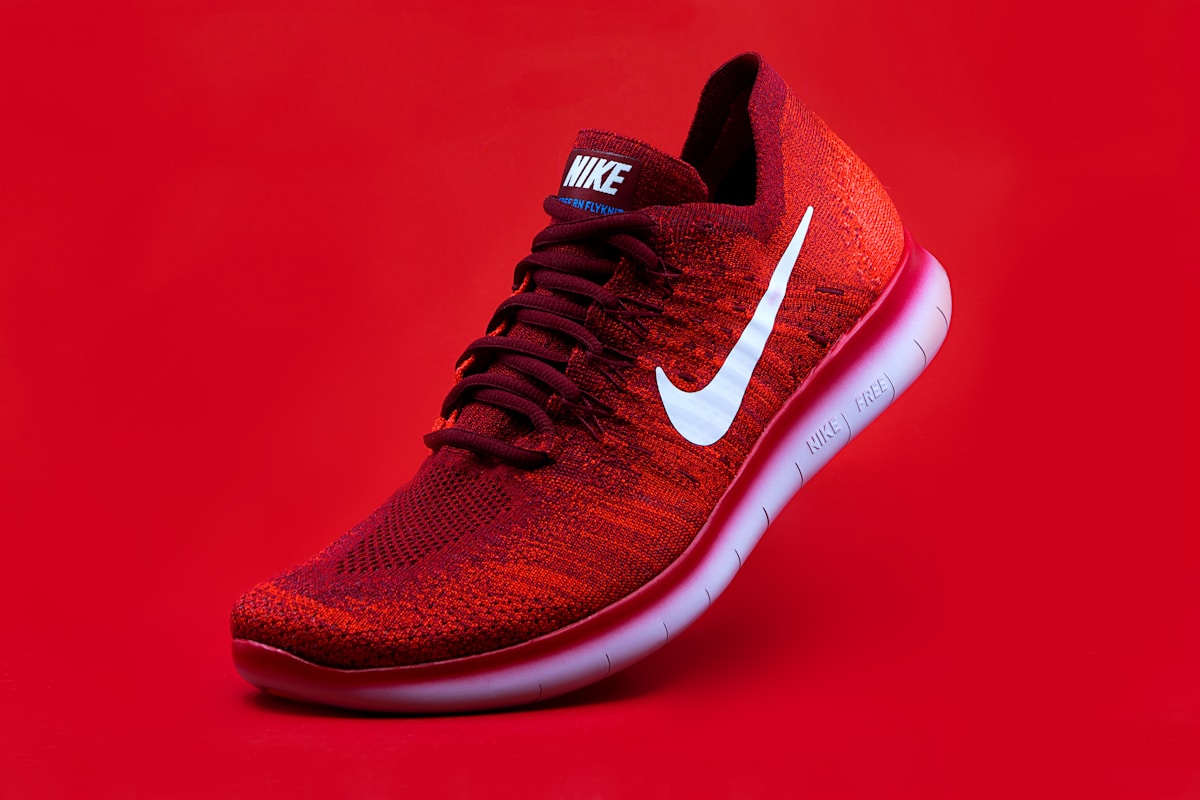
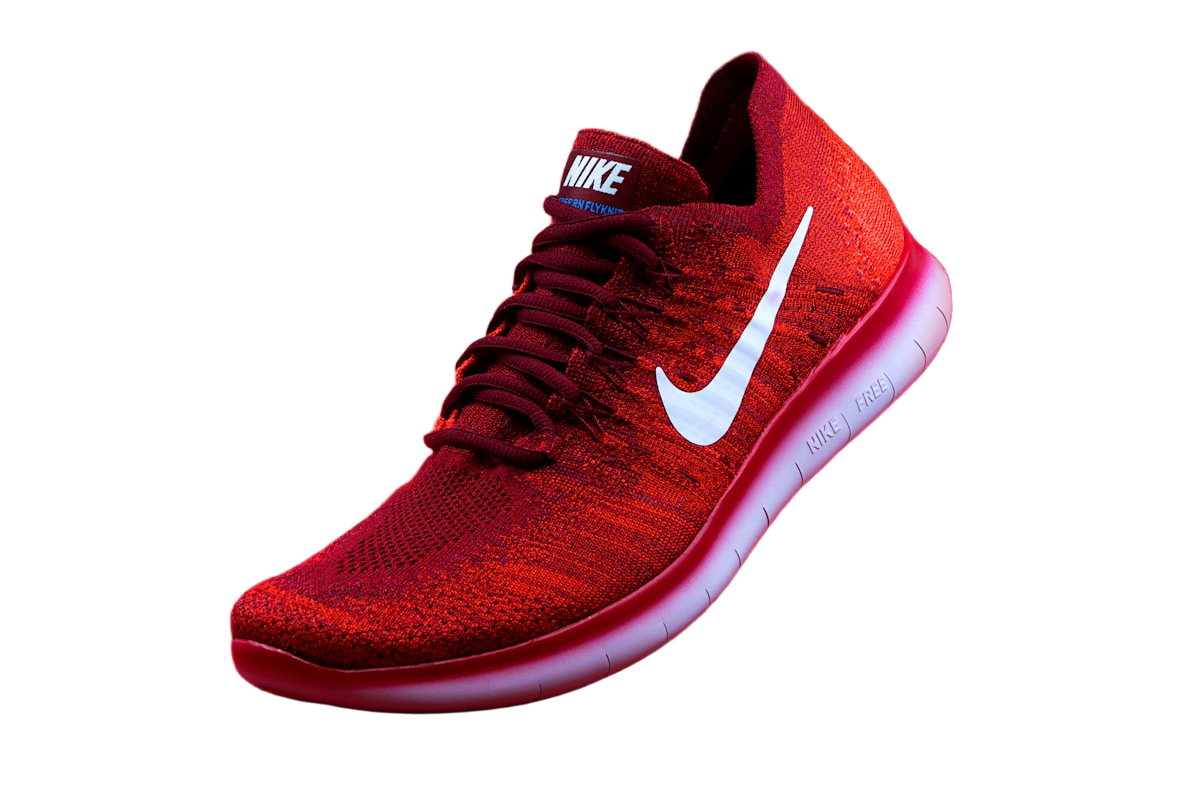
Consider the shoe shown above. The original pale sole contains pink illumination from the red scene. If that color remains on a white-background export, it does not automatically mean the remover left a strip of backdrop. Compare the location of the pink area: a patch inside the real sole is product image data, while a patch outside its boundary may be a masking error.
Make one small correction to an obvious outside patch and inspect the silhouette again. If the shoe becomes thinner but the pink cast remains, undo. The experiment has answered a useful question: the eraser is changing geometry, not correcting illumination. Preserve the shape and handle color in an editor with the appropriate controls, or choose a more neutral source photograph.
Avoid creating jagged edges during export
Start with a sharp source image that meets the upload limits and avoid enlarging a small cutout beyond its useful resolution. Download PNG rather than taking a screenshot. Repeated resizing and JPEG conversion can introduce artifacts or flatten transparency, making later edits less reliable.
Keep a transparent master and review a separate finished version at the size where it will appear. A 600-pixel-wide cutout stretched to 2400 pixels uses four output pixels across for each source pixel across; interpolation can smooth the result but does not recover photographed detail. An edge suitable for a thumbnail may not hold up in a large print.