
What transparency means
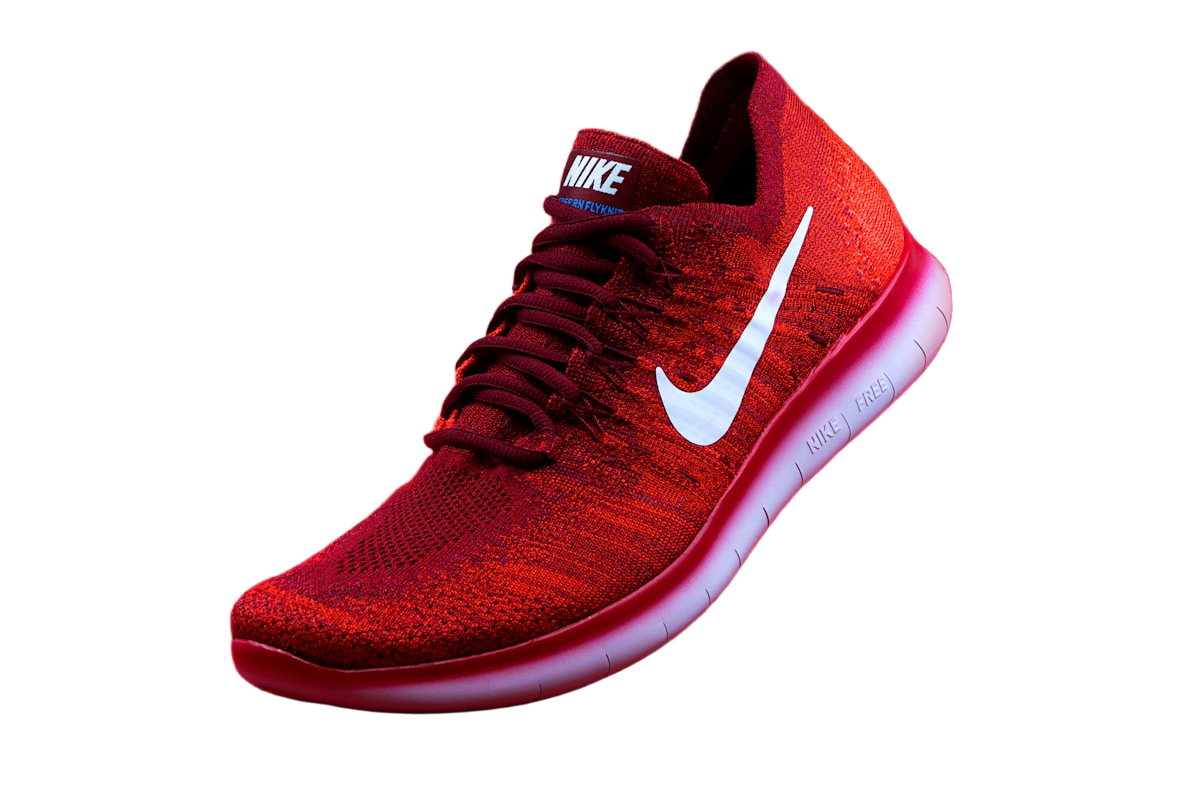
A transparent PNG stores an alpha channel alongside its color information. Pixels can be fully transparent, fully opaque, or partially transparent, which helps preserve soft edges such as hair and fabric.
The checkerboard in the editor is a visual aid, not part of your download. Some image viewers display transparent pixels as white or black, so a solid-looking viewer background does not necessarily mean transparency was lost.
Export without a background
Select your image in the editor and wait for the automatic removal to finish. Choose the Transparent background swatch, keep the format set to PNG, and select Download PNG.
Choosing White is not the same as choosing Transparent. A white-background export contains opaque white pixels; a transparent export leaves those pixels available for another design's background.
Verify the downloaded file
A white image viewer cannot tell you whether white pixels are stored in the file or merely displayed behind it. Test the file in a layer-based editor with two contrasting background colors. Keep the image layer at full opacity: lowering the opacity of the entire layer is not the same as removing its background.
- Create a colored background layer and place the downloaded PNG above it. Do not paste a screenshot of the Cutout Lab preview.
- Look outside the subject. The layer underneath should show through, while solid parts of the subject remain solid.
- Change the lower layer from a light color to a dark one. The empty area should change with it; a stored white rectangle or checkerboard will not.
- Export from the destination editor and reopen that exported file. This second check catches workflows that preserve transparency while editing but flatten it when saving.
What an unexpected rectangle tells you
Locate the first stage where transparency disappears. Running removal again is unnecessary if your original PNG is transparent and only the final publishing step has flattened it.
| What you see | What to check | Next action |
|---|---|---|
| A white rectangle on every background | Was White selected at download, or was the file converted to JPEG? | Return to the transparent master and export with alpha enabled. |
| A checkerboard that moves with the image | Was the preview captured as a screenshot? | Download the actual PNG. The captured squares are image pixels. |
| No rectangle in the editor, but one on the website | Does the published file still have transparency? Is the page showing a background behind it? | Inspect the delivered file before changing the source cutout. |
| A narrow pale rim, not a full rectangle | Does the original edge contain the old background color? | Treat this as an edge or color-spill problem, not a file-format problem. |
Choose PNG when you need alpha
JPEG does not support transparency. PNG is useful for cutouts, layered designs, and images that must work over different backgrounds. File sizes can be larger than a compressed JPEG, especially for detailed photos.
Cutout Lab offers PNG, JPG, and WebP downloads without a watermark. Choose PNG or WebP with Transparent selected to keep an alpha channel. The Original size uses your working image dimensions; uploads above 16 megapixels are reduced before editing, and size presets change the export dimensions. A detailed PNG can be larger than the uploaded file.
Keep a reusable master
Save one transparent version before creating colored variations. This lets you place the subject over a different background without running removal again. Download your work before closing or refreshing the page; the app does not provide a saved-image library.