Automatic background removal works well on most product and portrait photos. It also fails in predictable ways, and knowing those patterns saves time, whether you edit images by hand or call the API from a script or an AI agent.
To find them, we ran 23 photos (plus two crops) through the Cutout Labs API in 33 requests on November 11–12, 2026. Every result below is the unedited API output. Unless noted, requests used size=full and format=png with no other options.
Quick reference
| What you see | Likely cause | What to do |
|---|---|---|
| The hand holding a product is gone, leaving gaps | The product was chosen as the subject | Paint the hand back with Restore area, or reshoot without a hand |
| A person is removed and only the product remains | The product is the sharpest, most central object | Frame the person as the main subject, or restore them in the editor |
| The food is kept but the plate is gone | The food was chosen as the subject and the plate treated as background | Paint the plate back with Restore area |
| A large object is removed and only a small part, such as a cushion, remains | The large object runs off the edge of the frame | Show the whole object with space around it |
| A table or vase is kept along with the chair | Nearby objects touch or stand in front of the subject | Erase them, or move them before shooting |
| Two people are kept when you wanted one | Both are equally prominent | Use roi, but expect a straight cut where the box crosses a subject |
| The background shows through glass or mesh | Transparent areas keep the original pixels | Retouch, or shoot glass against a plain backdrop |
| Legs or edges are missing on a moving subject | Motion blur has no clear edge | Use a sharper photo |
| Hair edges look soft and the file is small | The API defaults to size=preview (about 0.25 MP) | Set size=full |
| The product looks like it’s floating | The original shadow is removed with the background | Add shadow_type=drop |
1. Hands holding a product are removed
A hand wrapped around a product is the most common surprise. In four of our tests (the can from The Ghost Hand Problem, the photo below, and close crops of two others) the model kept the product and dropped the fingers, leaving finger-shaped gaps where they overlapped it.
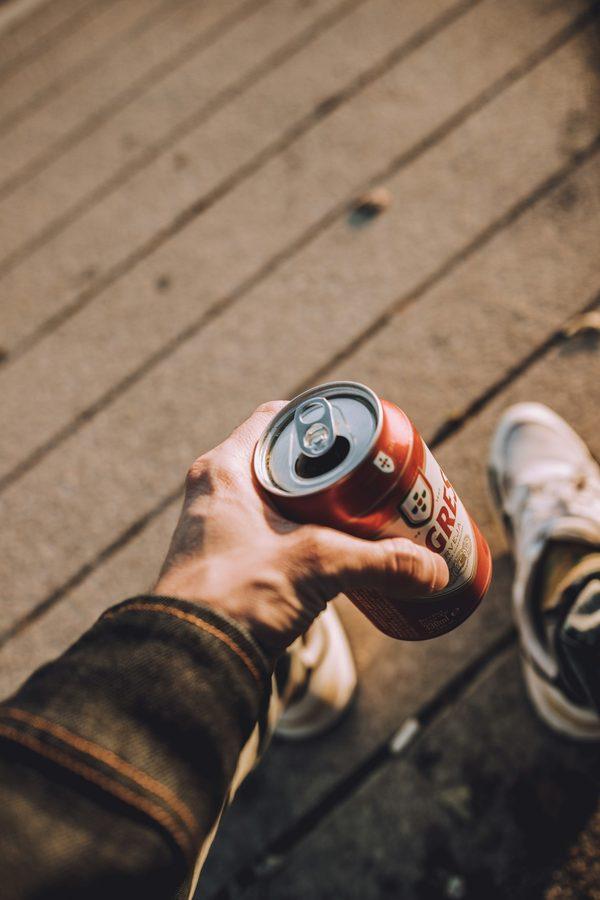
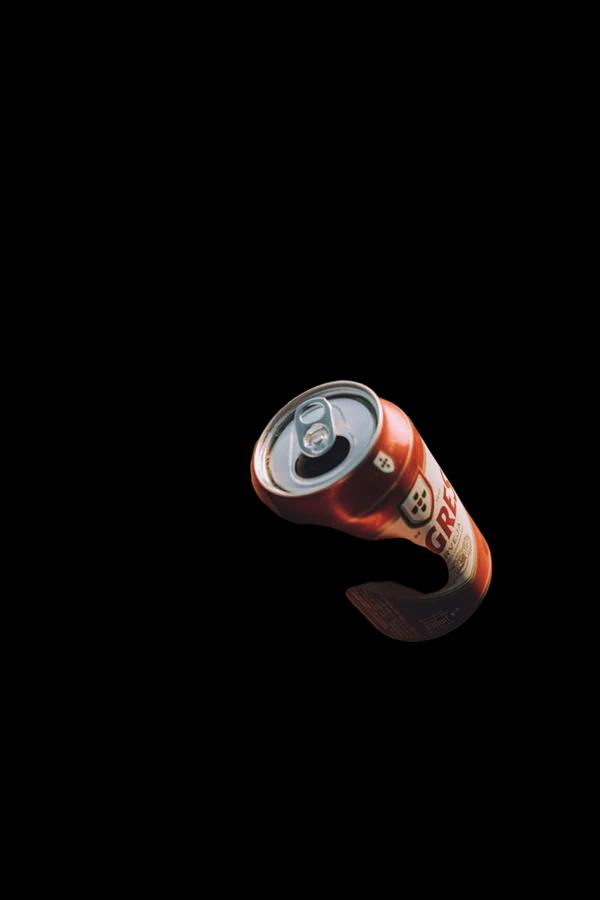
Results aren’t always all-or-nothing: here a piece of the hand survived. Parts of the product hidden behind the fingers can’t be recovered either, because those pixels were never in the photo.
How to fix it: In the editor, use Restore area with a small brush to paint the hand back. For a product-only listing, shoot without a hand or retouch the gaps. We cover this case in more detail in The Ghost Hand Problem.
2. The model decides who the subject is, and a face doesn’t guarantee it’s the person
We expected a visible face to make the model keep the person. It didn’t. In this waist-up photo, the can is sharp and central while the person is softer, and the model removed the person entirely:
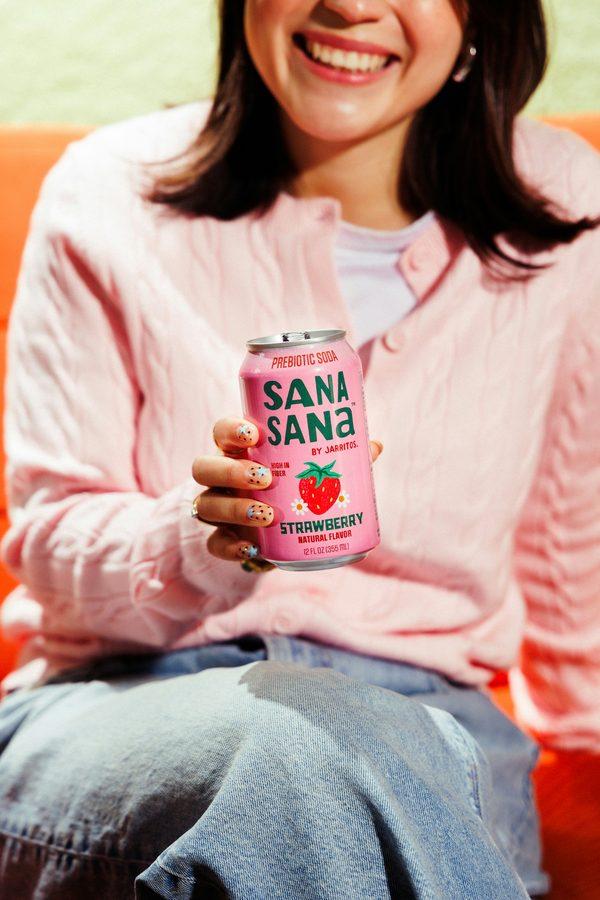
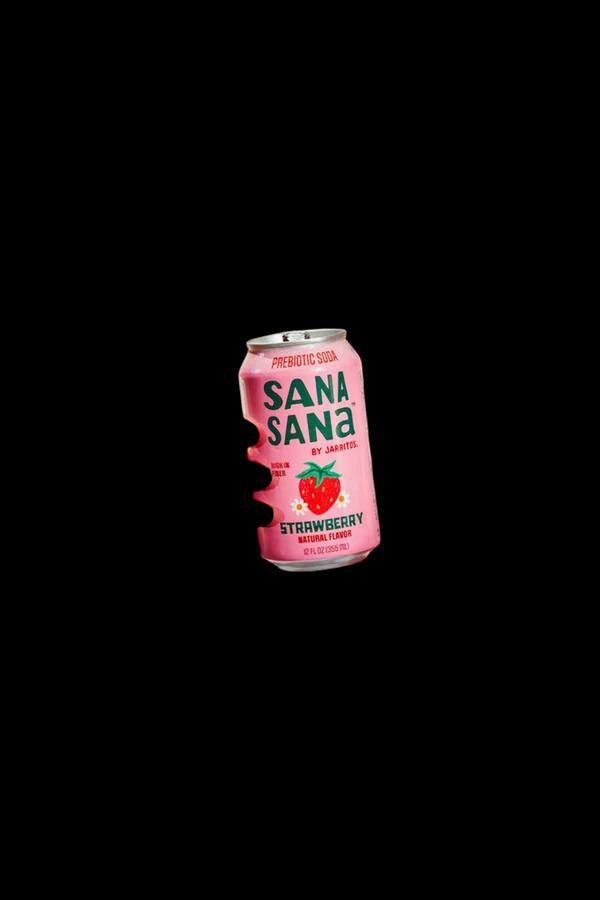
In a full-length photo of a different person holding a similar can, the model kept the person, the hand, and the can:
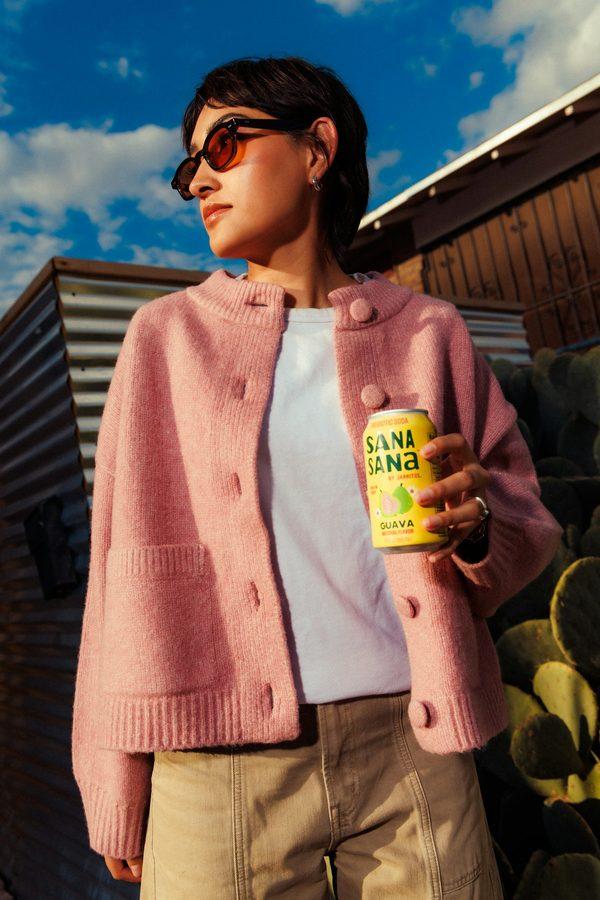
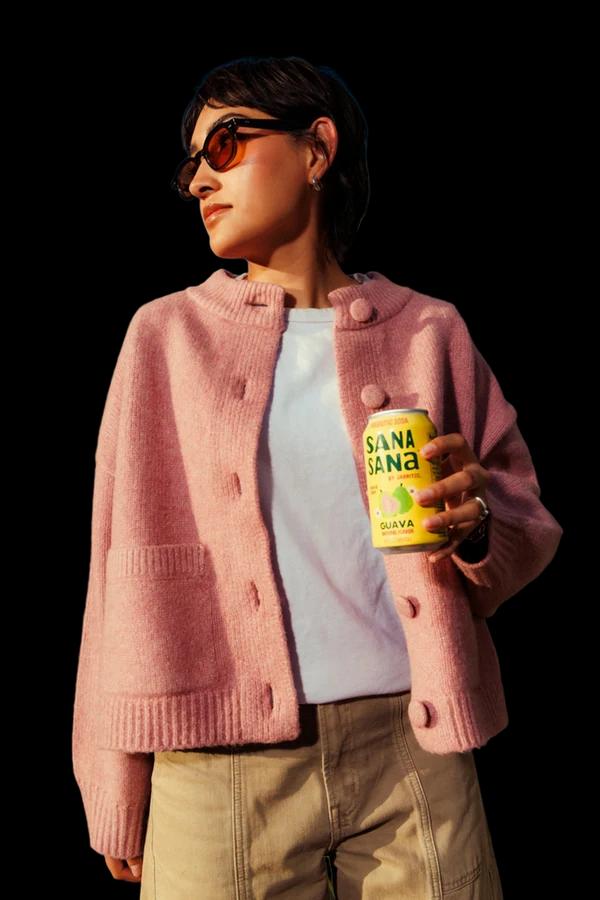
Photos where the person filled most of the frame (a girl holding a drink, and a man in a suit holding a can) also kept the person and the product. The pattern across our tests: whatever dominates the frame and is in focus becomes the subject.
How to fix it: If you need the person, frame them as the main subject. If you need only the product, crop to it before removal. When the result is wrong, use Erase or Restore area in the editor.
3. Plates can be treated as background
Food photos have a built-in ambiguity: is the subject the food, or the dish it’s served on? In this overhead shot, the model kept the food and removed the white plate entirely:
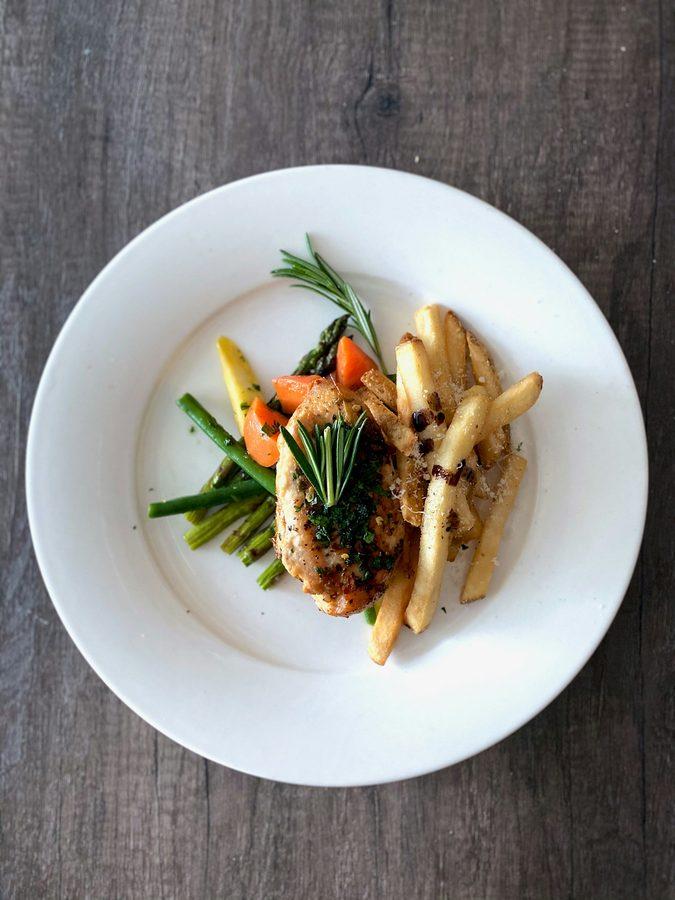
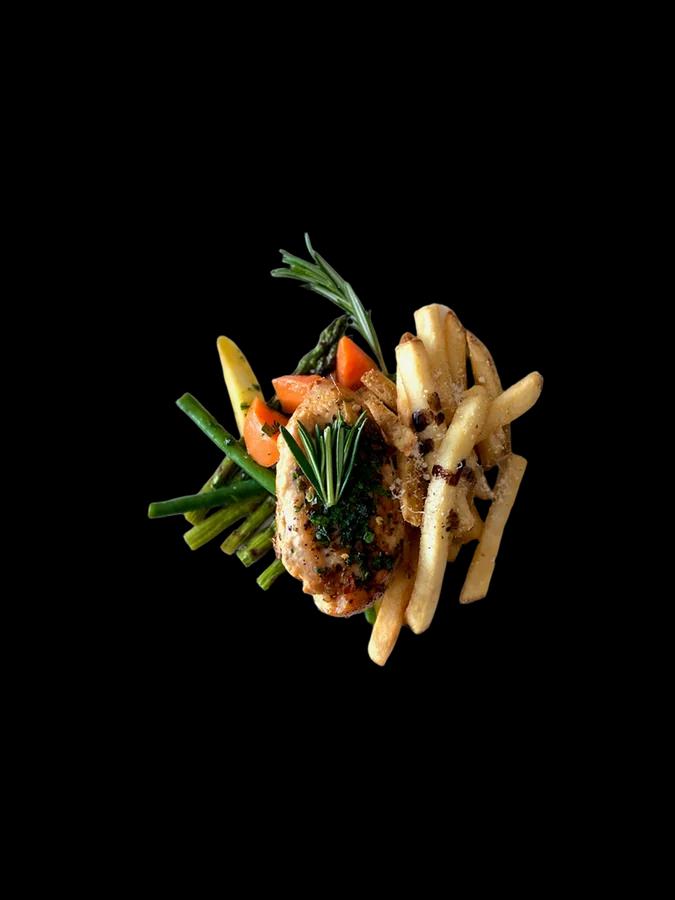
A salmon dish on a wide white plate, shot at an angle, went the same way: the food and the dark sauce were kept and most of the white rim was removed. A burger with no plate came out cleanly (see section 12).
Losing the plate can be what you want for a recipe card. For a menu or a delivery-app listing, it usually isn’t.
How to fix it: Paint the plate back with Restore area in the editor, staying inside the rim so the old table doesn’t come back with it. If you process a menu in bulk, check every plated dish.
4. A subject cut off by the frame can lose to a smaller object
In section 2, the object that dominated the frame became the subject. In one of our tests that broke down when the large object ran off the edge of the photo. This green sofa fills most of the frame but is cut off on three sides. The model removed the sofa and kept one striped cushion, with only a faint trace of the second:
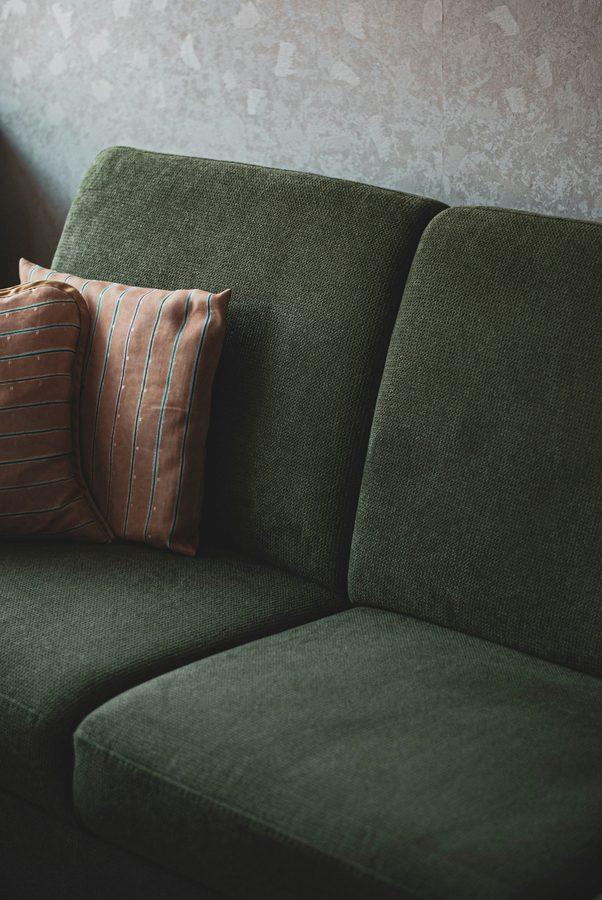
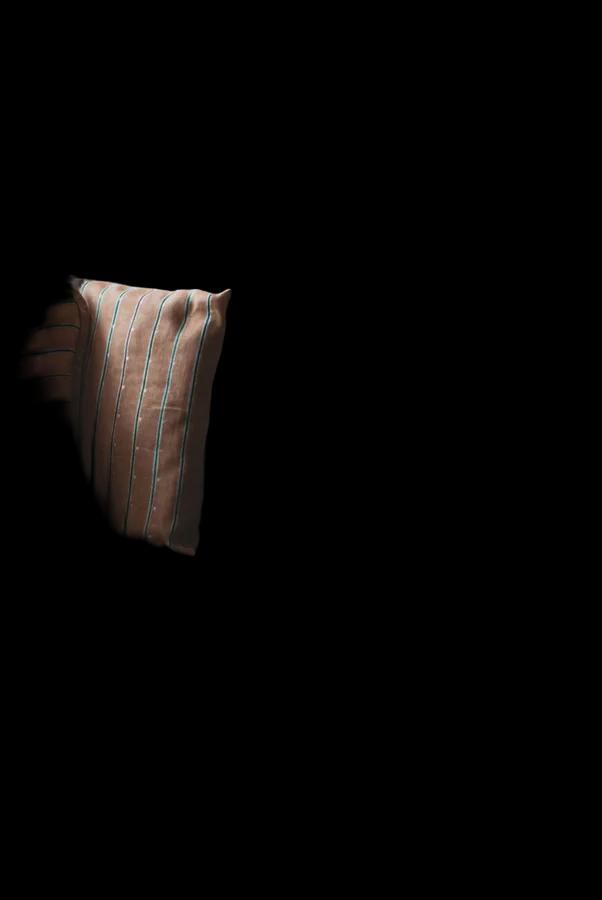
The result covered 8% of the frame, so the coverage check under “For developers and AI agents” below would flag it.
How to fix it: Photograph the whole piece with some space around it. If you only have a tight crop, expect to restore most of the subject in the editor, or use a different photo.
5. Nearby objects can be kept with the subject
The opposite can also happen: objects next to the subject are treated as part of it. Here a side table stands just in front of the armchair with a vase of dried flowers on it, and all three were kept:
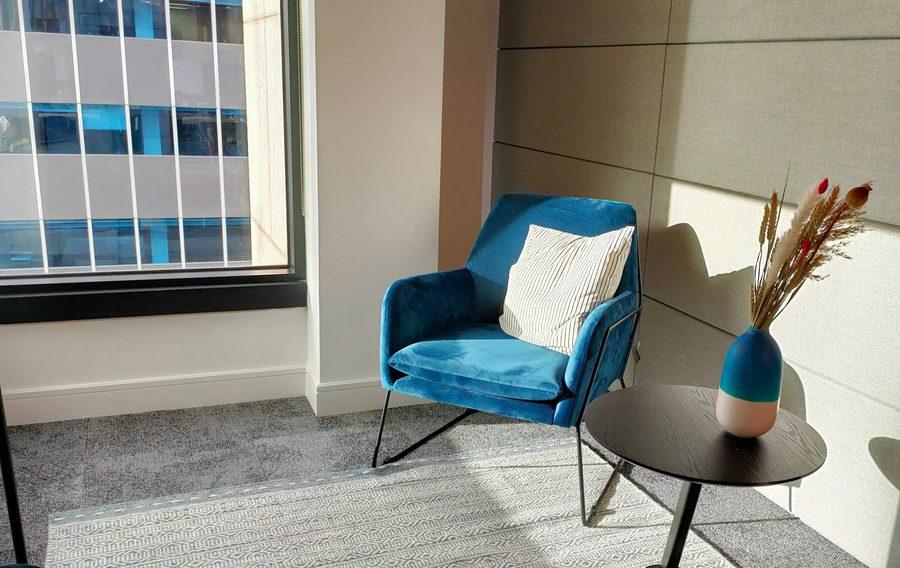
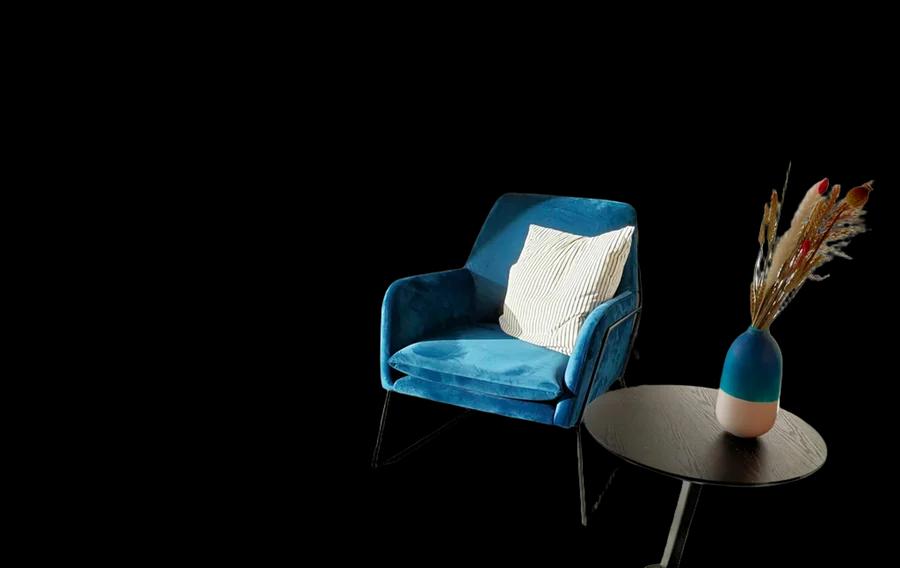
How to fix it: Use Erase in the editor to remove the extra objects, or move them before shooting. In the API, roi can clear objects outside a box, but it leaves a straight edge wherever the box crosses something you want to keep (see section 7).
6. Adding API options can change the result
The API uses one segmentation model for plain requests and a different one when you add processing options such as roi, crop, bg_color, channels=alpha, shadow_type, or clean_edges. Most of the time they agree. On this close crop they didn’t: the plain request removed the fingers, while the same image with channels=alpha kept them.
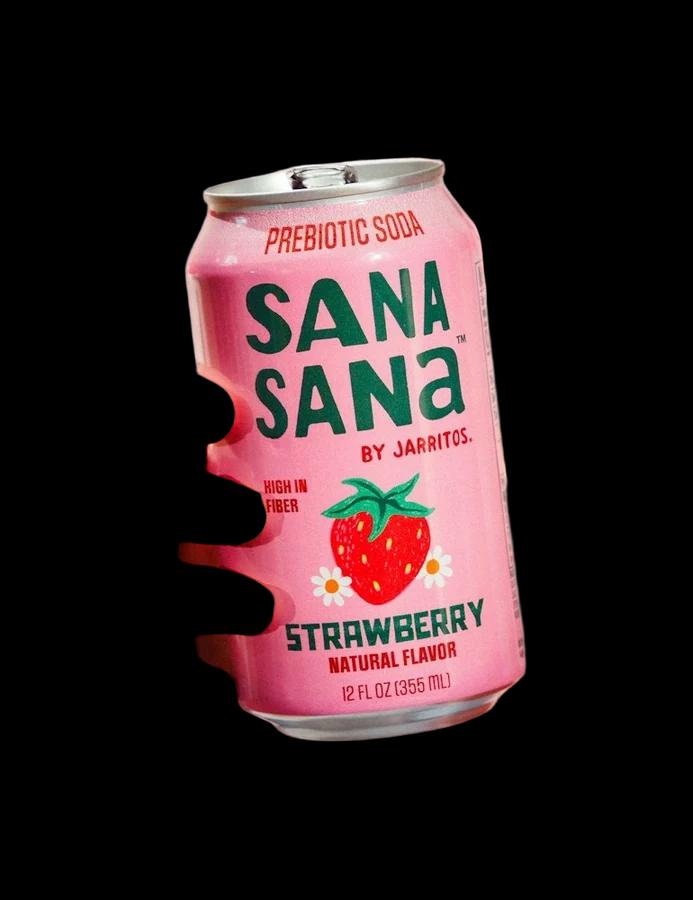
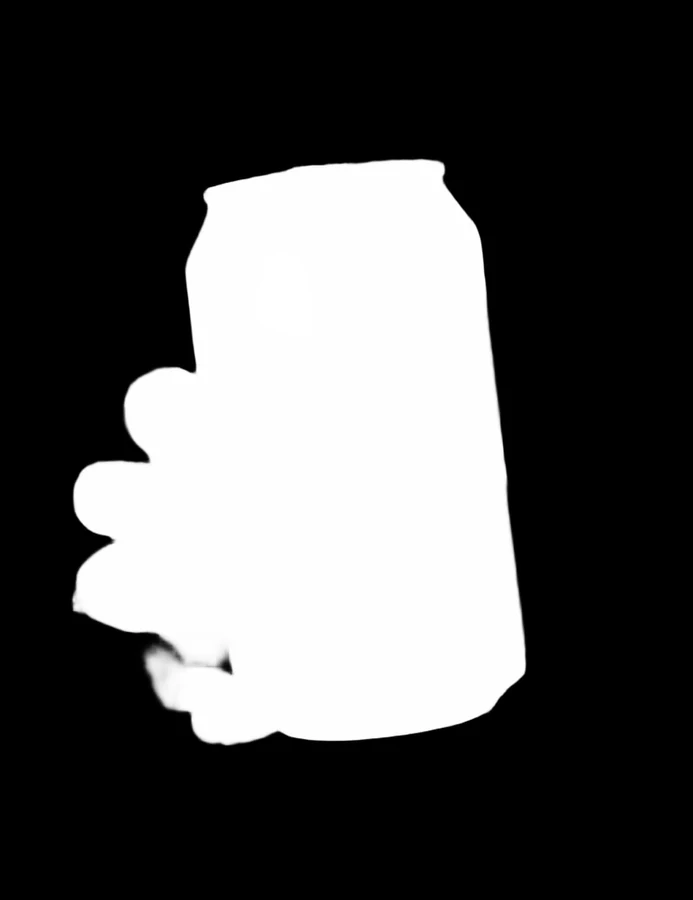
On the can photo from The Ghost Hand Problem, both requests removed the fingers, so adding options isn’t a reliable way to keep a hand. It does mean two requests for the same image can return different subjects.
How to fix it: If you compare results, use the same options each time. For important images, check the cutout rather than assuming two requests will match.
7. roi is a rectangle, not a selection
roi (region of interest) keeps only the part of the result inside a box. The model still runs on the whole image; anything outside the box is then cleared. That makes it useful for isolating one of several subjects, but the edge is a straight line:
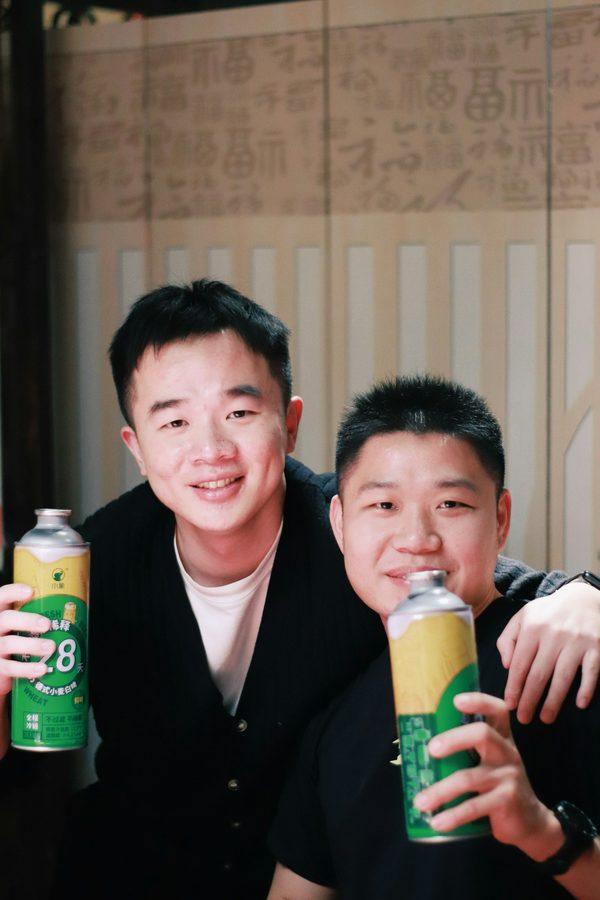
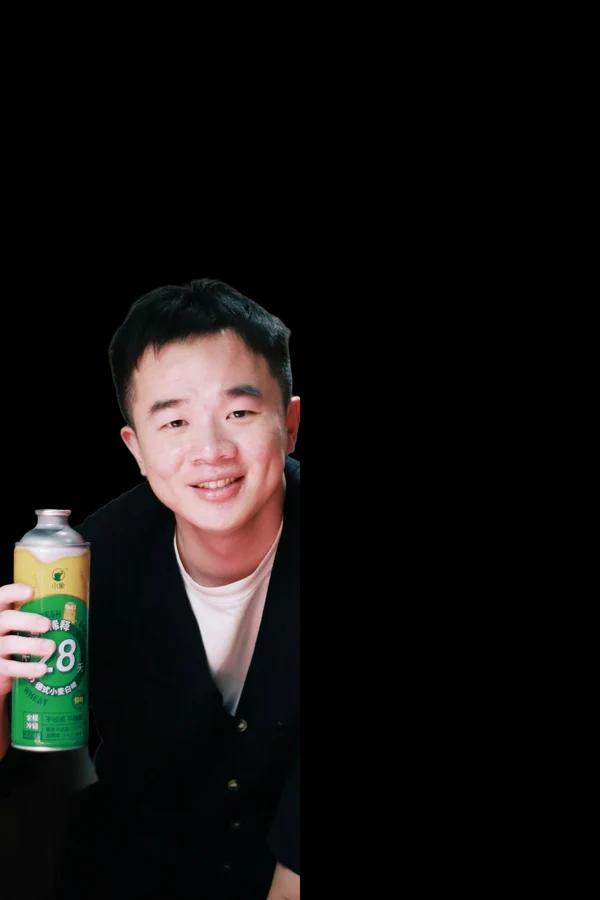
Because the box is applied after the model runs, roi also can’t bring back something the model removed. With a box around the can and the hand in the Ghost Hand photo, the fingers were still missing.
How to fix it: Draw the box with some space around the subject you want, and check for straight edges where subjects overlap. For overlapping subjects, a brush edit in the editor gives a cleaner edge.
8. type doesn’t change the cutout
The API accepts type (person, product, car, and so on) for compatibility with remove.bg. It doesn’t change the result: our request with type=person returned a file byte-for-byte identical to the request without it. The value is only echoed back in the X-Type response header.
9. Glass and clear plastic keep the old background
Segmentation decides which pixels belong to the subject; it doesn’t make them see-through. A glass bottle is kept, but so is everything visible through it. Placing the cutout on a new color shows the problem:
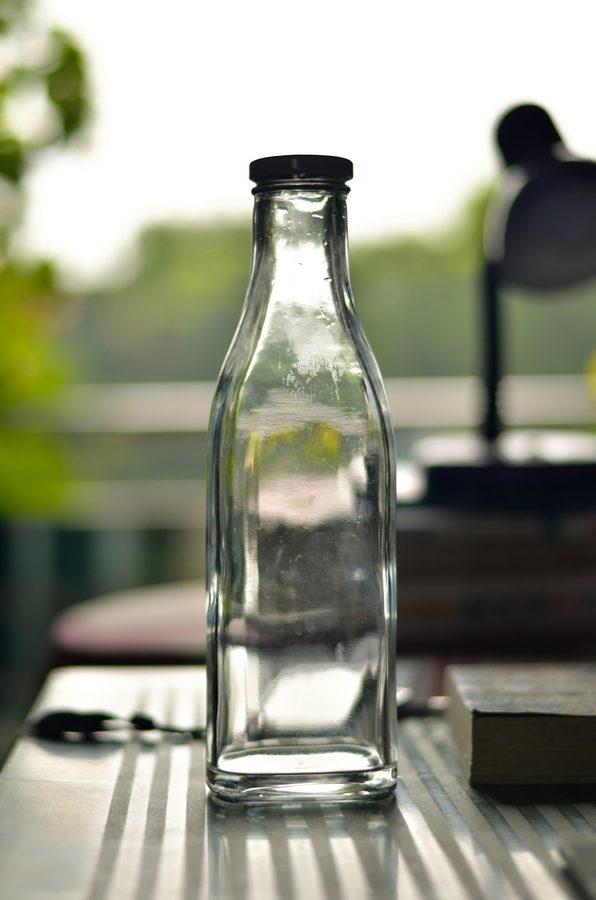
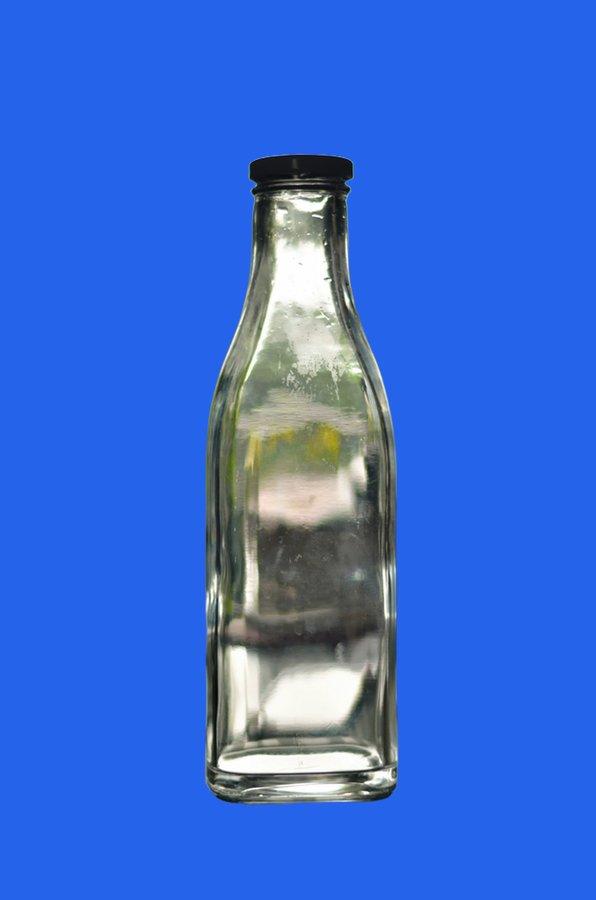
A wine glass behaved the same way: the empty upper part of the bowl kept the light gray backdrop.
How to fix it: Shoot glass against a plain, neutral backdrop so whatever shows through matches most new backgrounds, or retouch the inside of the glass. Our glass and transparent products guide covers this in detail.
10. Mesh and see-through materials keep the old background too
The mesh back of this office chair was kept as a solid area, including the black studio wall behind it. On a light background, the mesh looks darker than it should:
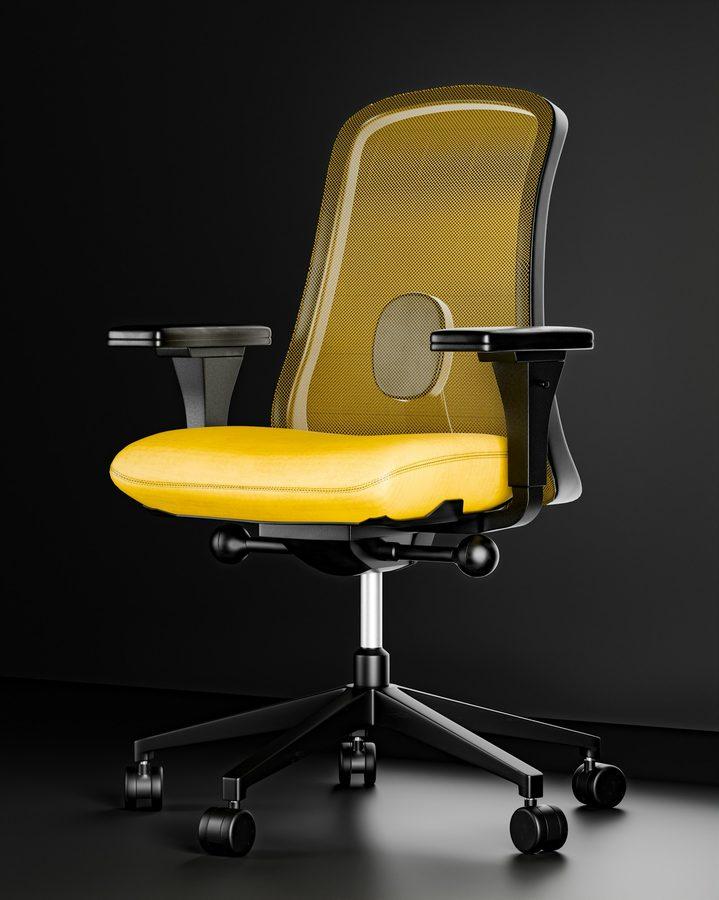
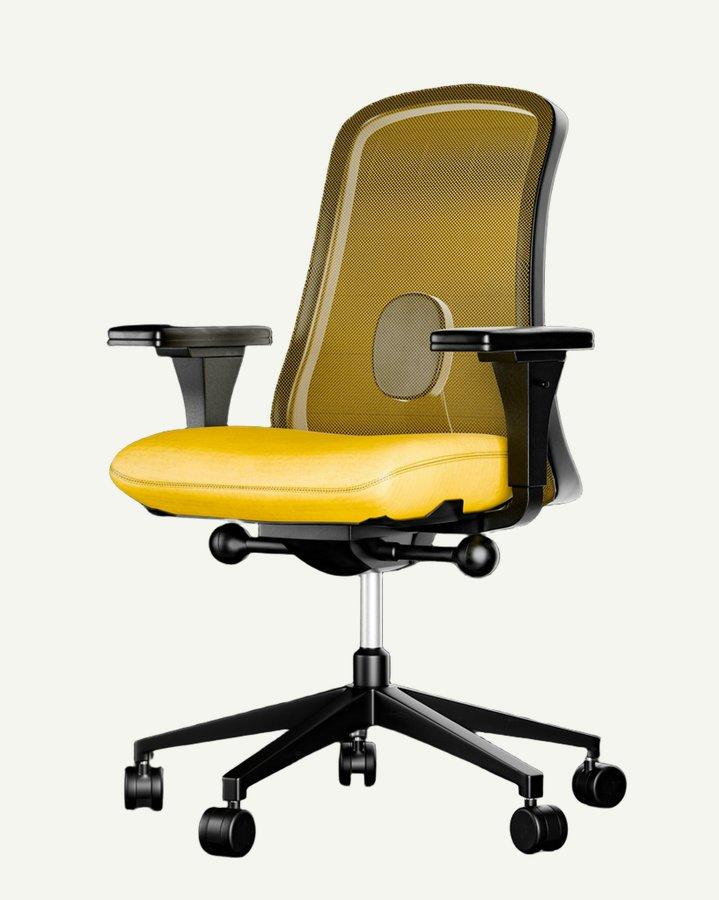
How to fix it: Photograph mesh, lace, and perforated materials against a background close in color to where the cutout will be used.
11. Motion blur loses edges
A blurred edge has no clear boundary to follow. On this running puppy, parts of the blurred legs were cut off and a thin bright fringe from the original background stayed along the back:
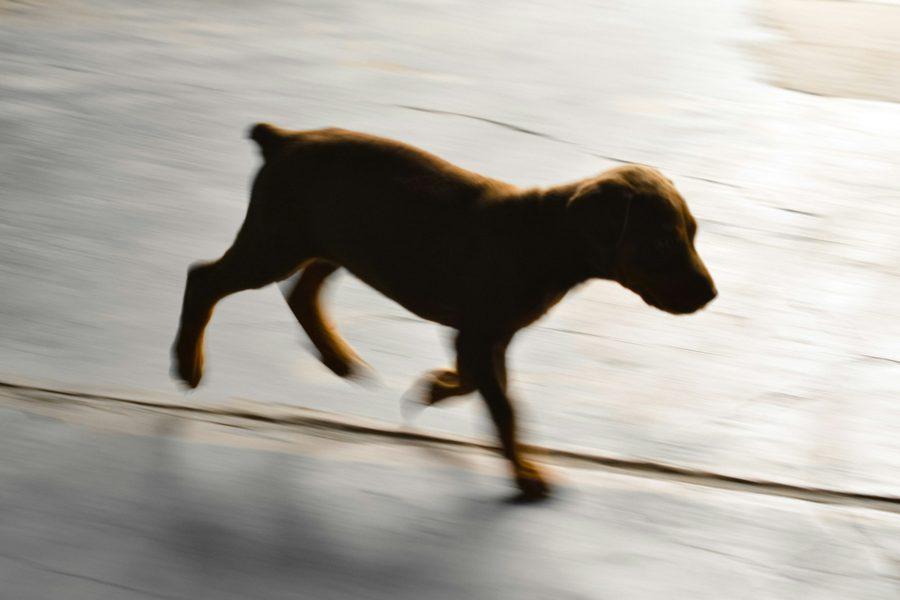
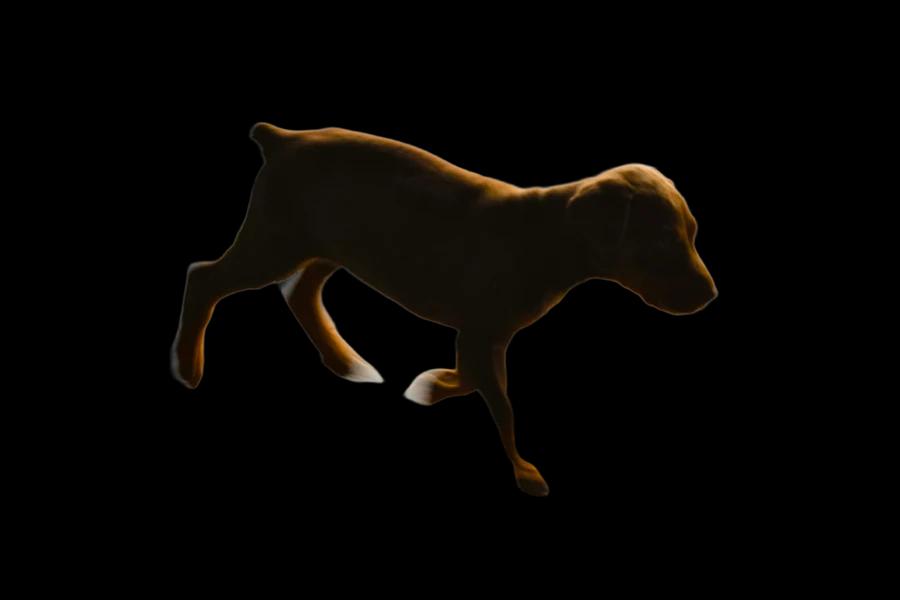
How to fix it: Use a sharper frame if you have one. Otherwise restore the missing parts with a small brush, and check the edge on a dark background for leftover fringe. See fixing background removal edges.
12. What worked well
These limitations aren’t the whole picture. Several cases that are often hard for background removal came out cleanly:
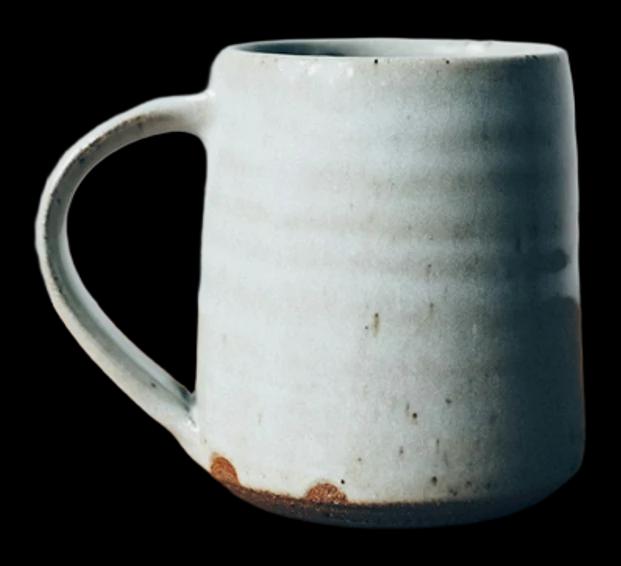
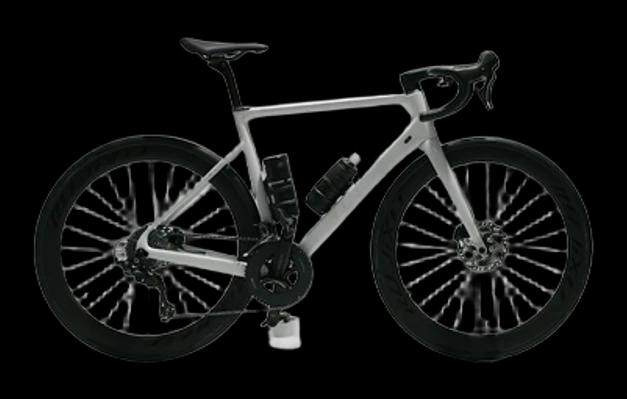
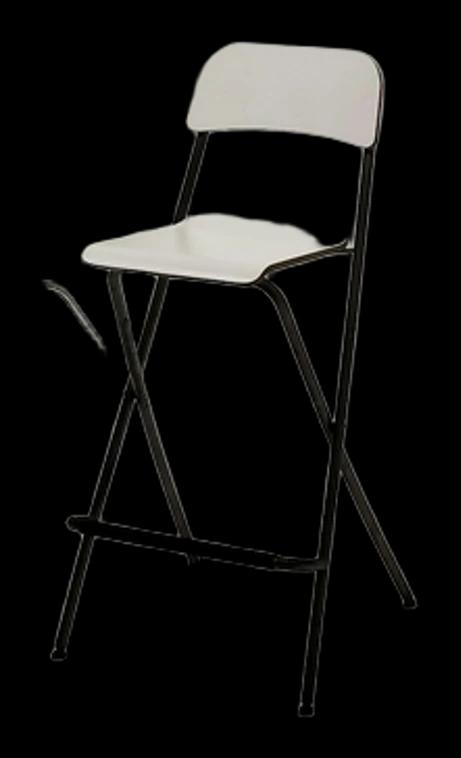
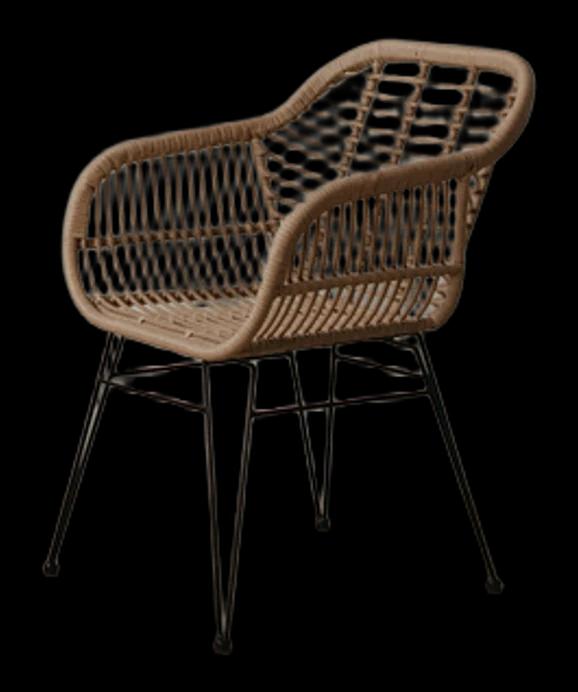
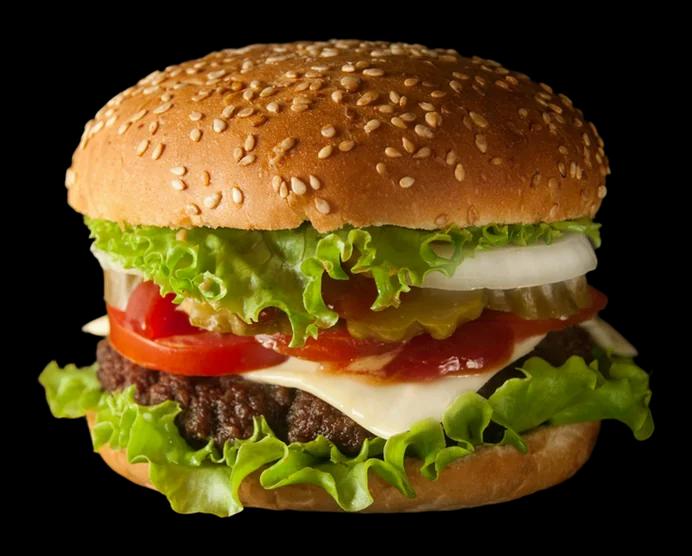
Three overlapping mugs, two people side by side, and a person holding two drinks were also kept whole, including the holes inside the mug handles.
13. Shadows are removed with the background
The cast shadow under these sunglasses was removed along with the background, which can make products look like they’re floating. The API can add a soft drop shadow back:
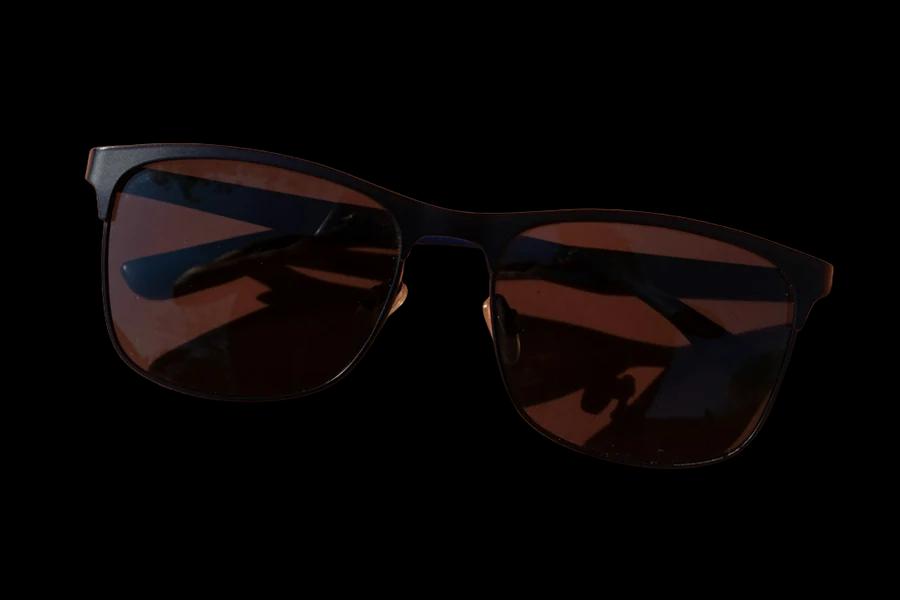
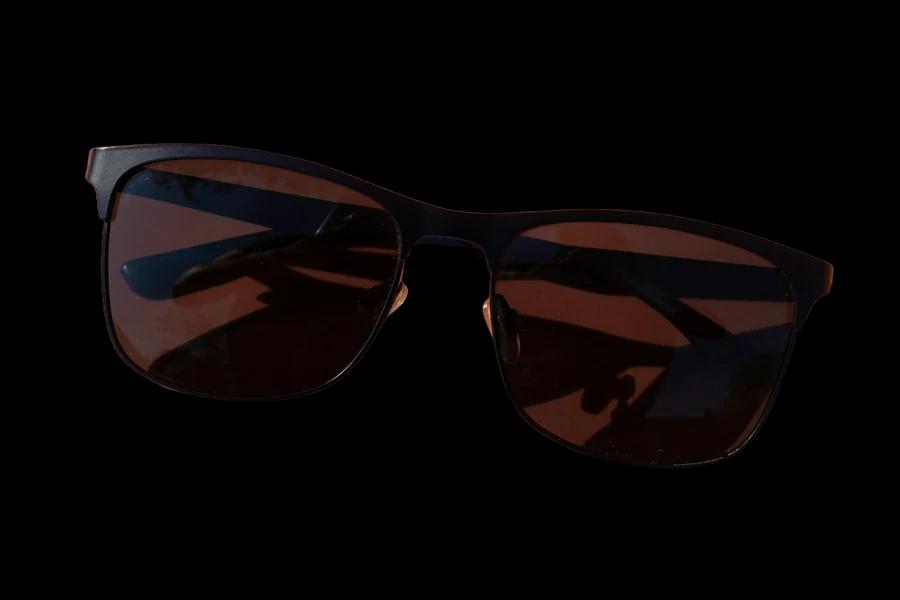
The added shadow is a generic drop shadow, not a copy of the original one. The tinted lenses also kept some of the orange backdrop seen through them, like the glass in section 9.
14. The API’s default output is small
If you don’t set size, the API returns a preview of about 0.25 megapixels. For an 800 × 1000 portrait, that’s 447 × 558 pixels. Here’s the same patch of hair from both outputs, shown at the same size:
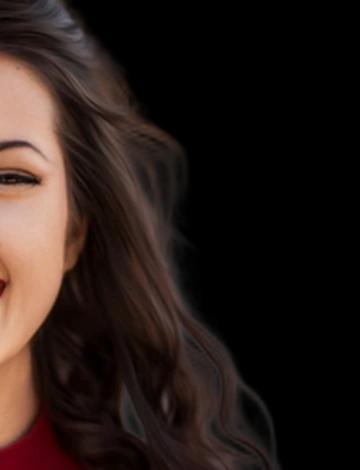
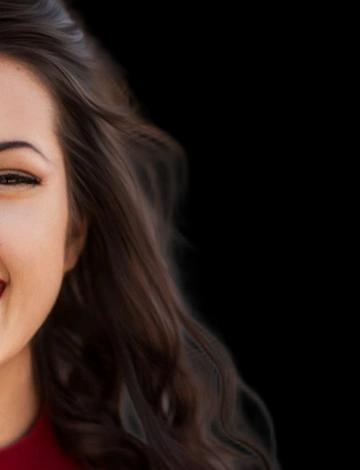
How to fix it: Always send size=full (or hd/medium if you want a smaller file). Transparent PNG output is limited to 10 megapixels. The web editor works at full resolution up to 16 megapixels.
For developers and AI agents
Request recipes
Every request is a POST to https://api.cutoutlabs.com/v1.0/removebg with your key in the X-Api-Key header and one image source (image_file, image_url, or image_file_b64).
| Goal | Parameters |
|---|---|
| Full-size transparent cutout | size=full&format=png |
| Marketplace listing on white | size=full&crop=true&crop_margin=8%&bg_color=ffffff&format=jpg |
| Keep only one area | size=full&roi=0% 0% 50% 100% (left, top, right, bottom) |
| Inspect exactly what was kept | size=full&channels=alpha (white = kept) |
| Add a soft shadow | size=full&shadow_type=drop&shadow_opacity=50 |
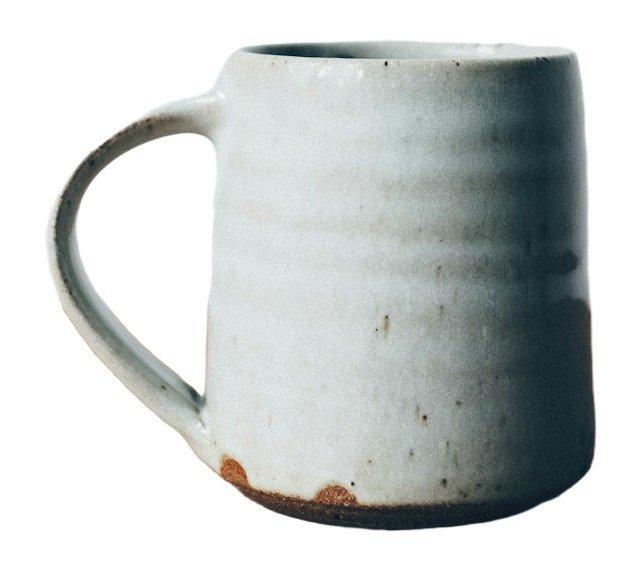
The listing recipe produced this in one request:
Check the result before you use it
An agent can’t see the image the way a person does, but a few cheap checks catch most of the failures above:
- Subject coverage. Compute the share of pixels with alpha above zero. In our tests, the waist-up photo where the person was removed covered 5% of the frame; the full-length photo where she was kept covered 54%. A result far below what you expect usually means the wrong subject was kept.
- Bounding box. Compute the bounding box of the alpha channel yourself.
X-Foreground-*headers are only returned when the request uses processing options such ascrop,roi, orbg_color; the JSON response (Accept: application/json) always includes the bounds. - Straight edges. If you used
roi, check whether the bounding box ends exactly at the box edge. In the two-person test it ended at x = 800 of 1,600, the box boundary, which means a subject crossed it. - Content you can’t check automatically. Flag photos that contain hands holding products, plated food, glass, mesh, or motion blur for human review.
from PIL import Image

alpha = Image.open("result.png").getchannel("A")
coverage = 1 - alpha.histogram()[0] / (alpha.width * alpha.height)
print(f"subject covers {coverage:.0%} of the frame, bounds {alpha.getbbox()}")
Facts that are easy to get wrong
- The default
sizeispreview. Setsize=fullfor production images. typedoesn’t affect the cutout.roiclears everything outside a rectangle after segmentation. It can’t add back something the model removed.- Requests with processing options can return a different subject than plain requests for the same image.
- Hidden parts of a subject can’t be reconstructed.
- Inputs can be up to 12 MB and 12 megapixels.
For the full parameter list, see the API reference. AI assistants can call the same API through the Cutout Labs MCP server.
How we tested
We sent each photo to the production API on November 11–12, 2026 and saved the responses unedited. The images on this page are resized for the web, and the five cutouts under “What worked well” are trimmed to the subject. The “on a blue background” and “on an off-white background” images are the API results composited onto a solid color to show what the cutout contains. Results come from the current models and may change as they’re updated, so test your own images before relying on a specific behavior.
Photo credits (all under the Unsplash License): Jonathan Cooper (the photo in The Ghost Hand Problem), Luciano Mast, Sana Sana (second photo), Maccy, Souro Souvik, Jesse Kojo Kuntoh, Iván Antonio, Annie Spratt, Rama Januartino, George Pagan III, Lucas George Wendt, Michael Dam, Focused on You, Lisa Amann, Kunle Atekoja, Alina Bondar, and Ilya Mashkov. Other test photos, described but not shown: Jordan Heinz, Alexander Eriksson, shailaja patel, engin akyurt, and Casey Lee.