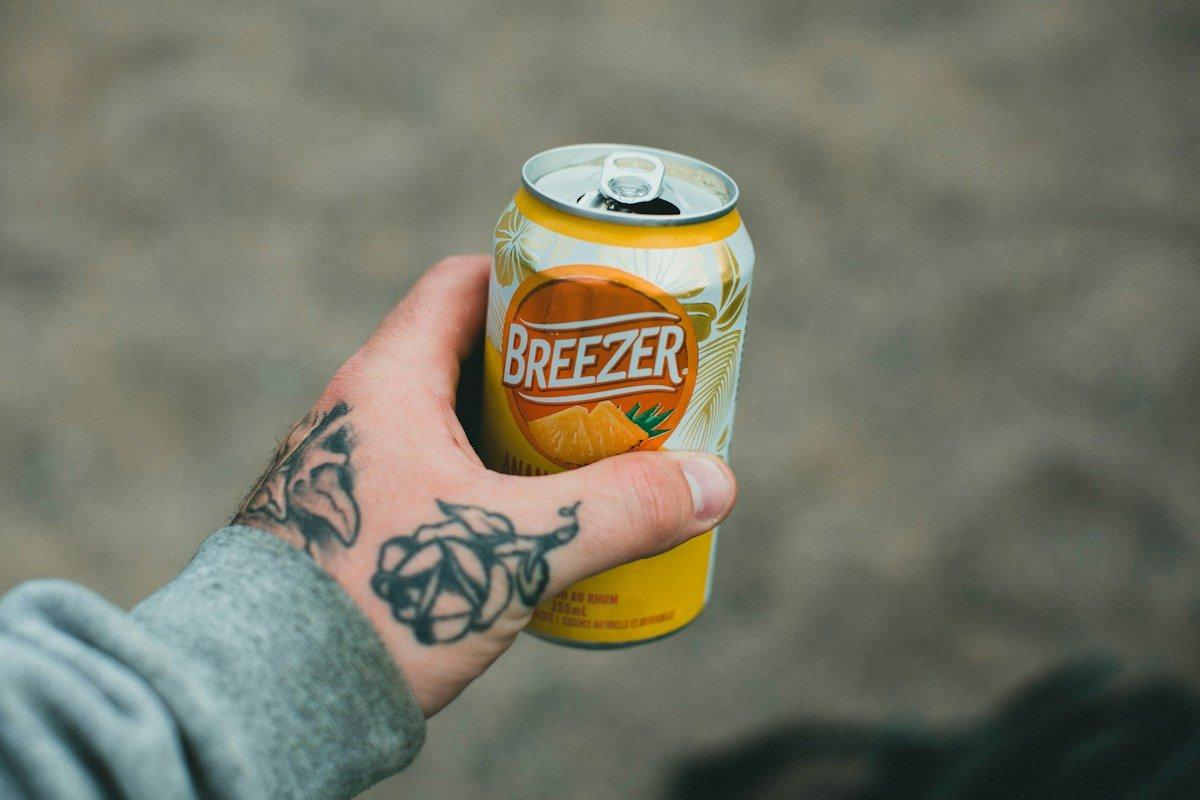
If you have ever integrated an automated background removal API into an e-commerce catalog pipeline or a social ad generator, you may have encountered a similar result.
Take the lifestyle photo above: a hand holding a beverage can against an outdoor backdrop. You might expect a cutout of the hand gripping the can. Here is what Cutout Labs’ automatic background removal returned for this exact photo:
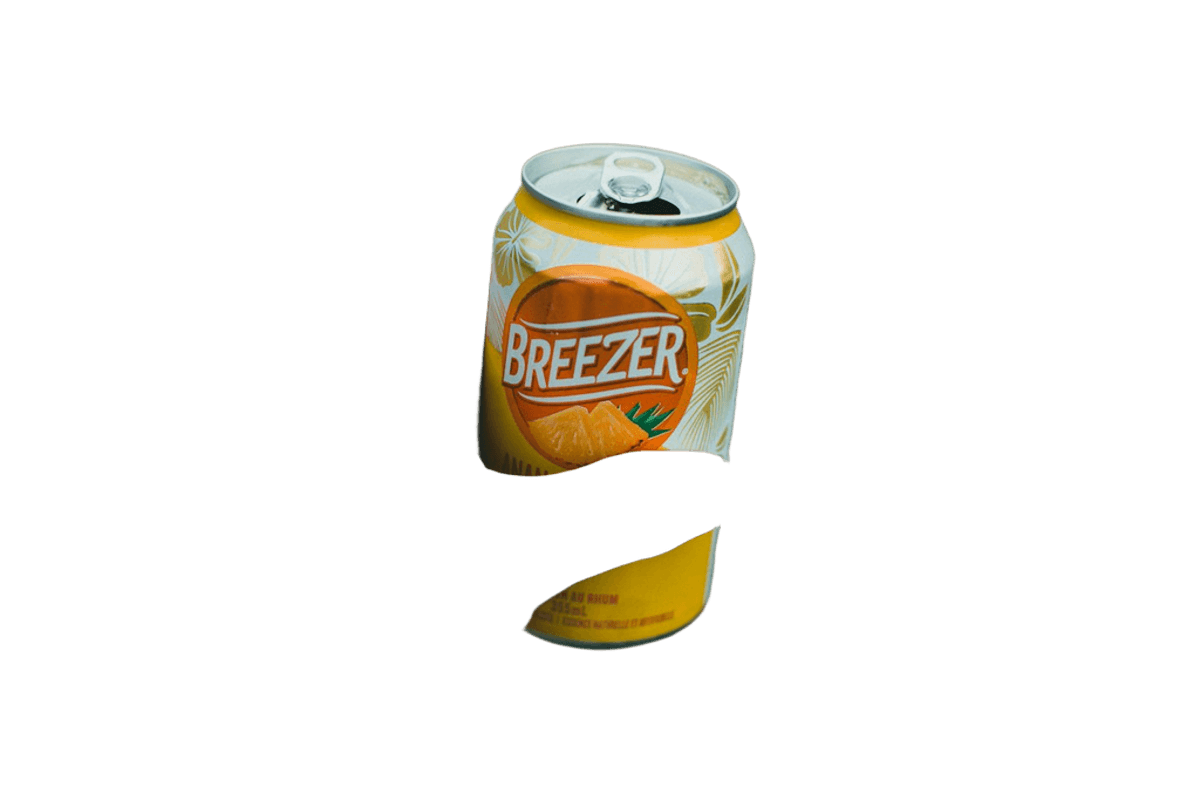
The can is isolated, but the hand is gone—and because the fingers covered part of the can, that area is now a transparent gap across the front of the can.
Why does this happen? Is the AI failing, or is it actually doing exactly what it was designed to do?
Here’s why hand-held products can be difficult to segment, how user intent affects what counts as foreground, and ways developers can handle it.
1. Why Hands Can Disappear
There is no single explanation for this result: background removal systems use different models, training data, and definitions of the foreground. In a product-focused image, a model may identify the can as the main object and fail to include the hand that overlaps it. That is a possible failure mode, not evidence that the model was specifically trained to remove hands.
Product imagery can add ambiguity. Depending on the intended use, a hand might be part of the subject, an occlusion over the product, or simply another foreground object. A model that has not been told which interpretation the user wants can produce an unsatisfactory cutout.
This behavior varies by model and image; it should not be assumed to reflect a universal e-commerce training bias.
2. The Ambiguity Paradox: What Did the User Actually Want?
From an API design standpoint, this is an intent ambiguity problem:
| User Intent A (Catalog Builder) | User Intent B (Social / Lifestyle Creator) |
|---|---|
| Wants only the can isolated from the hand for a packshot. | Wants the can + hand together to overlay onto an ad template. |
| Model deleting the hand is a feature. | Model deleting the hand is a bug. |
Without an explicit selection or other guidance, an automatic tool has to infer what belongs in the foreground. The result depends on the model and the image; there is no guarantee it will favor either interpretation.
3. How to Handle Hand-Held Products Today
Cutout Labs doesn’t currently have a setting that tells automatic removal to keep a hand holding the product. For close-up shots like the one above, expect the hand to be removed. In our tests of wider shots, where the person filled most of the frame, the hand was kept. Here is what you can do when it isn’t.
A. Restore the hand in the editor
Open the image in the Cutout Labs editor, choose Restore area, and paint over the hand with a small brush. Restore area brings back the original pixels, so stay inside the hand’s outline: painting past the edge also brings back the old background, such as the gaps between fingers. Use Compare and switch between light and dark backgrounds to check the edges before downloading.
B. For a product-only packshot, reshoot or retouch
If you want only the can, removing the hand is the right result, but the parts of the can the fingers covered are still missing. Background removal can’t reconstruct hidden product details. Shoot the product without a hand, or retouch the gaps in an image editor before using the cutout in a listing.
C. Know what roi can and can’t do
In the Cutout Labs API, roi limits the area eligible to be kept as foreground. Its four values are the box’s left, top, right, and bottom coordinates, in pixels or percentages:
{
  "image_file": "lifestyle.jpg",
  "roi": "20% 10% 80% 90%"
}
This helps exclude other objects outside the box. It doesn’t tell the model to keep a hand, so it won’t bring back a hand that automatic removal has excluded.
D. Review hand-held shots in pipelines
In a high-volume creative pipeline, flag photos where a person holds the product and review those cutouts before publishing. Edge refinement can improve boundaries, but it can’t restore a hand that the foreground mask has already excluded. Test hand-held products with representative images before relying on the results in production.
Have an edge-case image that stumped your workflow? Test it with the Cutout Labs API or plug in the Cutout Labs MCP Server to automate your matting pipelines directly in Claude, Cursor, and VS Code.