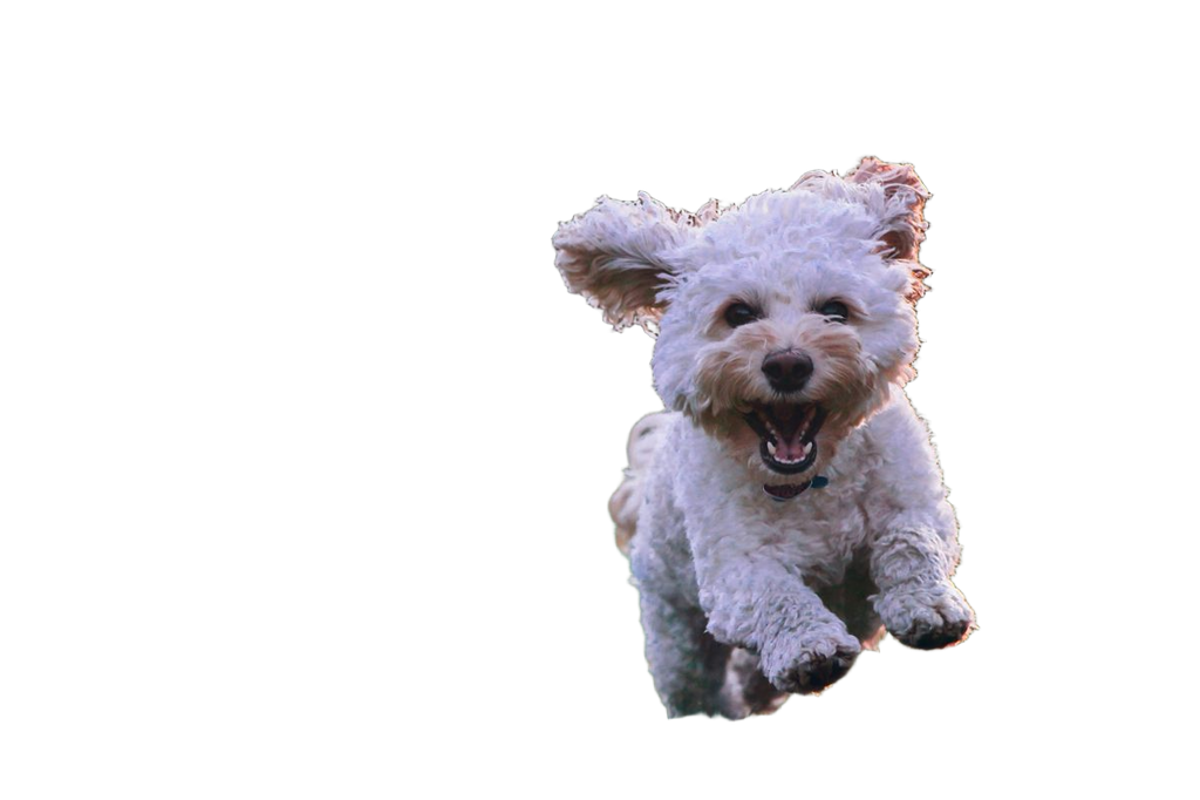
What happens to fur after automatic removal
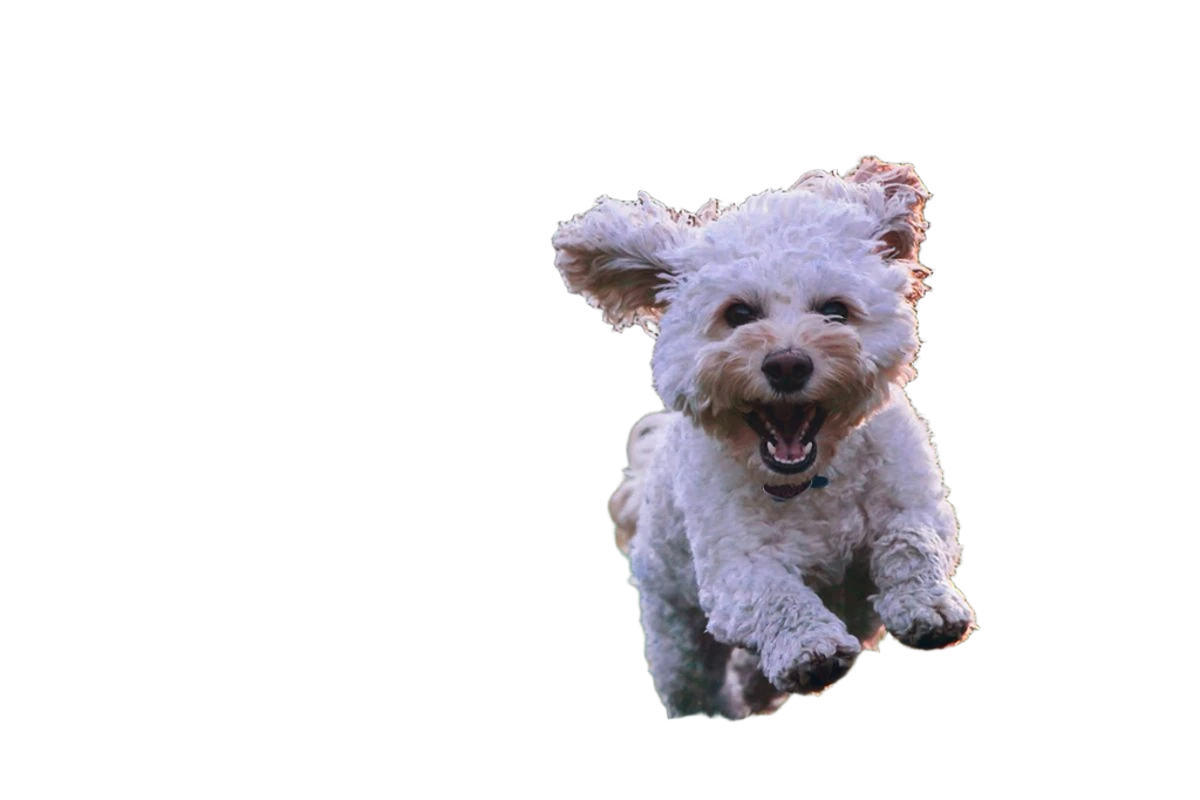
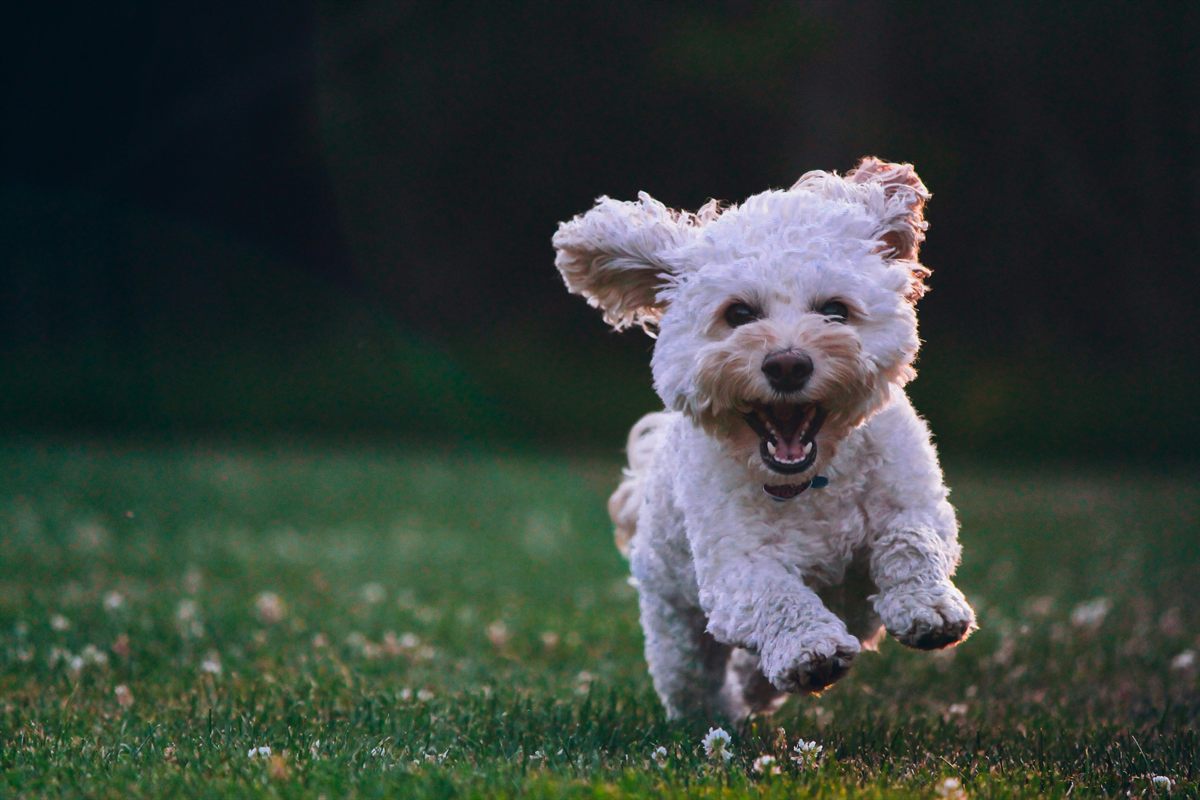
The sample is a 1200 by 800 pixel photo of a white curly-coated dog running over grass toward the camera, with a dark, out-of-focus background and warm backlight. After automatic removal, the grass and background are transparent. The head, both flying ears, the open mouth, the collar, and the front paws are kept, and the coat keeps an irregular curly outline instead of being smoothed into a solid shape.
Two areas look odd at first. The underside between the legs is dark, which is shaded fur in the original, not leftover grass. And the tail behind the body is softer and partly transparent, because it is out of focus and blurred by motion in the source. Neither should be erased without comparing against the original.
Check fur edges on a contrasting color
Fur edges are partly transparent, so they pick up some color from the old background. On a checkerboard this is hard to see. On a new color it shows as a green fringe from grass, a gray fringe from a sofa, or a pale rim from a white wall.
- Turn on Edge check and look at the outline on dark and light backgrounds, especially around ears, cheeks, and the top of the head.
- If the fringe takes on the old background color, turn on Clean edge colours and compare again.
- For stray clumps of grass or carpet, choose Erase with Soft edge and a brush slightly larger than the clump. Avoid tracing the whole outline; that removes real fur.
- If an ear tip, whisker, or tail disappeared, use Restore area at 200 percent with a small brush.
Photos that make pet cutouts harder
Whiskers and single hairs that are thinner than a pixel may disappear at small sizes. That is normal for any photo-based cutout; a higher-resolution source keeps more of them.
| Situation | What you will see | What to do |
|---|---|---|
| Pet on grass or a patterned rug | Strands of grass or rug kept at the paws and belly | Erase small clumps at 200 percent; photograph on a plain floor or blanket next time |
| Dark pet on a dark sofa | Parts of the outline merge with the sofa | Restore the missing outline; use a lighter backdrop or more light for future shots |
| Motion blur or shallow focus | Soft, partly transparent tail, ears, or paws | Keep the softness; it was in the photo and cannot be sharpened by masking |
| Person holding the pet | Hands and arms are kept as foreground | Erase the arms, or crop in so the person is mostly out of frame |
| Leash or harness leaving the frame | The leash is kept and ends abruptly at the frame edge | Erase the leash or keep the crop where the cut looks natural |
Shoot pet photos that cut out cleanly
Get down to the pet's eye level, use a plain backdrop that contrasts with the coat color, and give the pet some distance from the background. Use a fast shutter speed for active animals so ears and paws are sharp, and photograph in soft light so the coat shows texture rather than a bright highlight.
Keep the original file. For prints, mugs, or framed portraits, upload the full-resolution photo: the web editor keeps working images up to 16 megapixels, which matters more for print than for a phone screen.
Put your pet on a new background
After the cutout looks right, choose a solid color, a gradient, a blurred version of the original, or your own photo in the export panel. Square works well for social posts and Portrait for phone wallpapers and cards. Download a transparent PNG if you want to design the final layout in another app.